
IN THIS EPISODE …
I show you how I edit my videos with Claude: one short instruction, a walk with my dog while the AI works, and a finished video plus a CapCut project. You’ll see my raw phone recording next to the edited version and how I fix things I don’t like.
// LINKS MENTIONED ⇩
- Videomat: the AI video editing assistant I use in this video
- AI Team: the program where you set up your own team of specialized AI assistants
- Client Machine: my step-by-step program for building a freebie, an email sequence and an offer
- How I Built an AI Team That Saves Me 7+ Hours a Week (article and video)
- CapCut: the free editing app where you can open and adjust the project
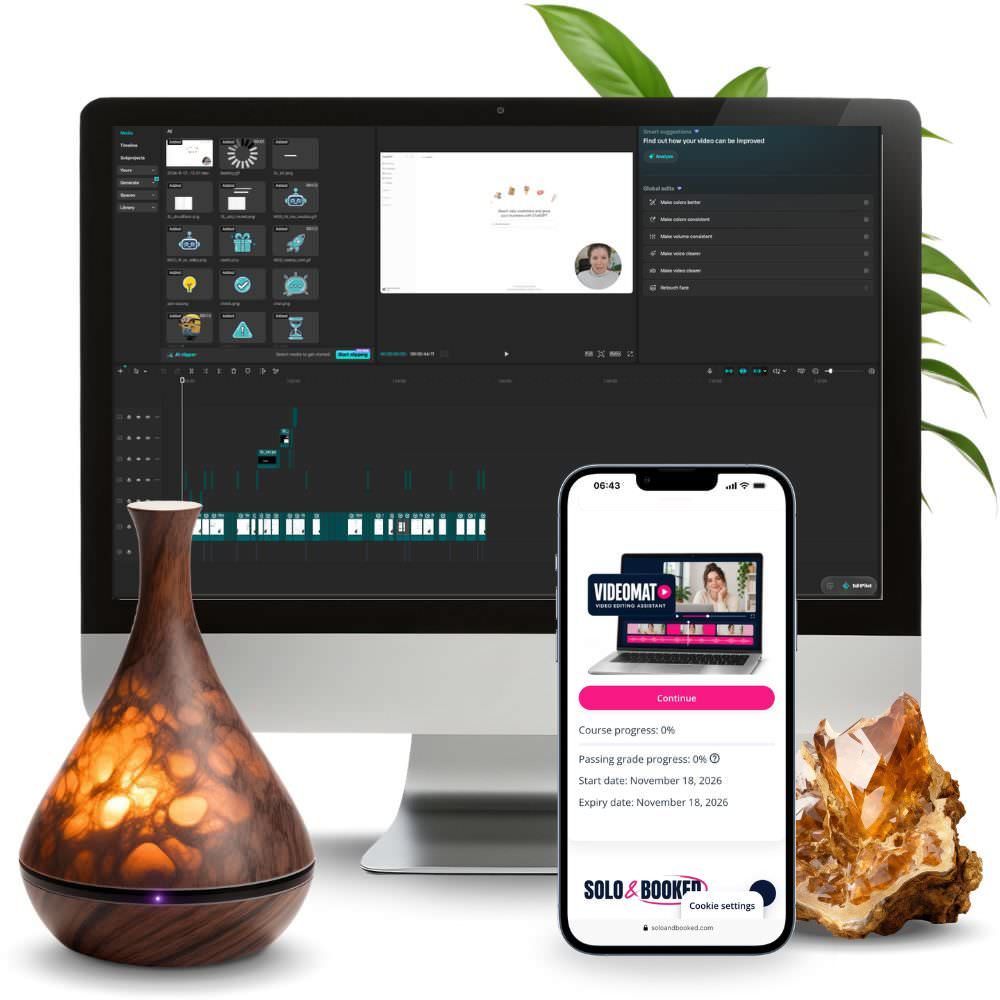
YOUR AI VIDEO EDITOR
Get Videomat
Turn your recordings into edited videos with subtitles, B-roll and your brand style, plus a CapCut project you can still change. You pay once, with no monthly subscription.
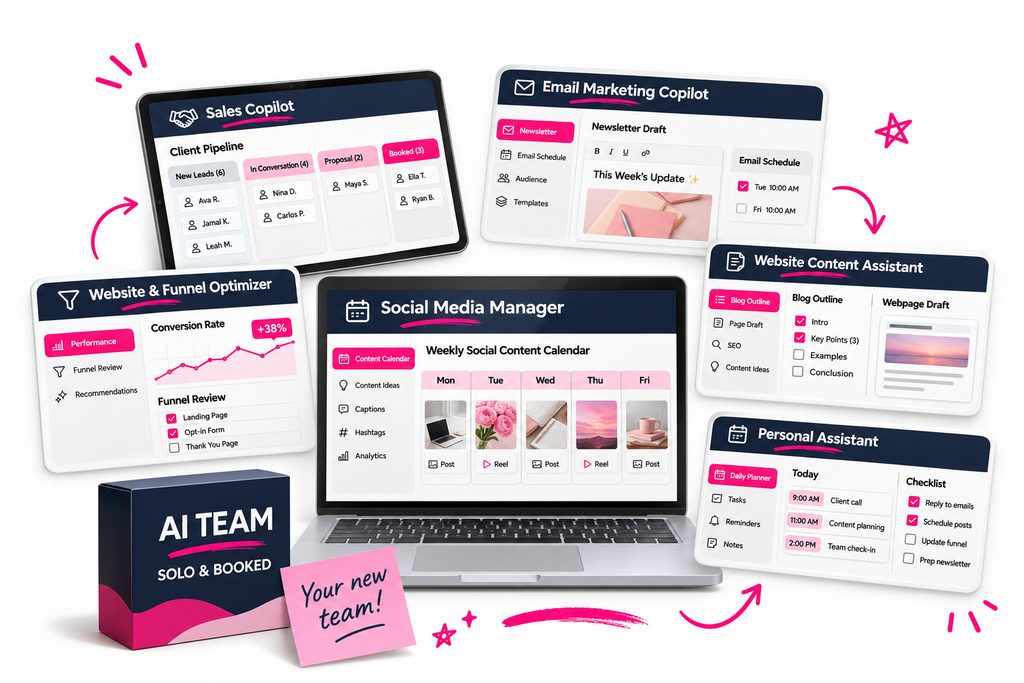
GET HOURS BACK
Build your AI Team
Set up AI assistants that know your business and help you with everyday tasks like drafting emails, planning content and improving your website.
PREFER TO READ?↓
How to Edit Videos with Claude: My Simple AI Editing Workflow
To edit videos with Claude, I use an AI video editing assistant called Videomat, a plugin that runs in the Claude app on my computer. I tell it which video to edit, which style to use and what to add, like B-roll, GIFs and zooms. Then I leave it to work, and when it’s done I get a finished video plus a CapCut project I can still change myself.
Below I’ll walk you through how I do it, show you what changed between my raw phone recording and the edited version, and explain what you need if you want to edit your videos this way too.
Why editing is the part that slows you down
If you record a lot of videos, you probably already know that editing takes time. Cutting the start, removing pauses, adding subtitles in your colours, finding a good shot to cover a jump cut… none of it is creative work, but it adds up to hours.
The other option is a video editor. For bigger, professional videos that’s still the right choice. But paying an editor for every reel and every regular YouTube video gets expensive quickly, and you still have to explain what you want and wait for revisions.
I wanted something in between for my regular videos and shorts, so I built an editor for my own AI team. This is how I use it now.
How I edit a video with Claude, step by step
- I open Claude and add my AI team folder. That’s where my brand style and my video assets live, so the editor knows how my videos should look.
- I tell it which video to edit and how. My instruction is short, something like: “Edit this video in my Solo & Booked style. Use B-roll, GIFs, zooms.”
- I send the message and do something else. I don’t sit and watch it edit. I usually take my dog Chili for a walk or work on something else on my computer.
- I check the finished video. When it’s done, I watch it and decide if anything needs another round of edits.
That’s the whole process on my side. The instruction takes a minute to write, and the rest happens while I’m away from the screen.
Before and after: what changed in my video
For this example I used a short, simple video I had recorded on my phone. In it, I talk about a walk with Chili, when I was listening to a seminar about AI. The speaker shared how his AI team works, how much free time he has now and the hobbies he fills it with. It made me think about what we could do with more time: not only add more projects to our work, but also enjoy some of it.
The raw recording wasn’t ready for social media. At the start you can see me getting ready, and there are long pauses while I’m speaking.
The edited version tells the same story, but it’s pretty much ready to publish. I didn’t have to touch the timeline to get there.
What the AI editor does in an edit
Depending on what I ask for, Videomat can add:
- subtitles, an opening hook and highlighted keywords,
- B-roll, GIFs, stickers and sound effects,
- my brand colours and fonts, so every video looks like mine,
- the format I need: vertical 9:16 for Reels, TikTok and Shorts, horizontal 16:9 for YouTube, or square 1:1.
It can also cut a longer video into shorts, which is useful when one recording should give you posts for the whole week.
What if you don’t like something in the edited video?
You have two options, and I use both:
- Ask for the change in plain words. I just tell the editor what to fix, for example “edit this and this for me”, the same way I’d tell a human editor.
- Open the project in CapCut. Every edit also comes as a CapCut project, so I can open it in the free version of CapCut, change whatever I want myself and export the video again.
This matters to me because I never feel stuck with what the AI decided. The final say stays with me.
What you need to edit videos with Claude this way
- a paid Claude plan (Pro or higher),
- a Mac or Windows computer with the Claude app installed (on Windows it works in Code mode),
- the free CapCut desktop app,
- about 6 GB of free disk space and an internet connection for the installation,
- your brand colours and fonts, or at least an idea of which ones you use.
You can record on your phone, but the editing happens on your computer. It doesn’t work on a phone, a tablet or in the browser.
When a human video editor is still the better choice
I don’t think AI replaces every video editor. For film or commercial production, event footage or any video where you want a truly creative edit, a professional is still worth it. Videomat also edits based on what you say, so videos without speech (music and footage only) aren’t a good fit.
Where it helps most is the regular stuff: talking-head videos for YouTube, reels and shorts that you want to post often without spending your evenings editing.
Where to get the AI editor I use
The assistant I used in this video is Videomat. You install it once as a plugin in the Claude app, answer a few questions about your brand, and then you type “edit video”. It’s also part of my AI Team program, together with the other assistants I use in my business.
If you’d like to see how the whole team works together, read how I built an AI team that saves me 7+ hours a week.
FAQ
Can Claude edit videos?
Yes, with the right setup. In the Claude desktop app, a plugin like Videomat can turn your recording into an edited video with subtitles, B-roll and your brand style, and give you a CapCut project you can keep editing.
Can I edit videos with Claude for free?
Not with my setup. Videomat needs a paid Claude plan (Pro or higher). CapCut, which you use to open and adjust the project, is free.
Do I need to know how to edit videos?
No. You don’t need to know how to edit, set up software or write long instructions. If you want to change something, you can describe it in words or adjust it yourself in CapCut.
Can I record on my phone and still use this?
Yes. I recorded the raw video in this example on my phone. You just need to move the file to your computer, because the editing happens there.


Leave a Reply